Home BETTING TOOLKIT USER GUIDE Functions Signals
Signals
Updated on 2026-09-12The Signals feature allows Betting Toolkit to connect to a third-party service that provides signals or tips.
Signal Sources and Signal File Format
To be managed by Betting Toolkit, signals can be read from a website by providing the appropriate URL/Feed that provides the CSV file or from a local CSV file. It is possible to specify multiple signal sources and, for each, set a different selection recognition method and, if desired, automatic refresh rates. Furthermore, signals can be imported one-off from a CSV file or generated by the program in the Market and Market Monitor windows.
To be compatible with Betting Toolkit, the CSV signal file can contain the following columns:
- Provider: name of the signal provider
- SelectionId: ID of the selection in the Betfair schedule, generally a string of numbers
- MarketId: ID of the market in the Betfair schedule
- SelectionName: name of the selection in the Betfair schedule
- MarketName: name of the market in the Betfair schedule
- MarketType: type of event in the Betfair nomenclature (e.g., MATCH_ODDS, OVER_UNDER_25, CORRECT_SCORE, etc.)
- BetType: can take the values BACK or LAY or BACK or BANK and is required for signal validation.
- EventName: Name of the event in the Betfair schedule
- EventId: ID of the event in the Betfair schedule
- EventTypeId: ID of the sport type (SOCCER = 1, TENNIS = 2, HORSE RACING = 7, GREYHOUND RACING = 4339, etc.)
- Handicap: Optional data used to identify selections in Asian handicap markets. The default value is 0 (zero).
- Price: Odds to use for the bet (optional). If specified, they can be used to place the bet, with the caveat that the bet may remain unmatched depending on market conditions.
- MinPrice: Any condition regarding the minimum odds required for the tip to be valid
- MaxPrice: Any condition regarding the maximum odds required for the tip to be valid
- Points: This data represents a possible stake multiplier that can be used in Betting Toolkitautomation
Fields in bold that can be used for signal recognition and validation, i.e., for correctly identifying the selection and side of the bet.
Field names are listed in the first row of the CSV file, while field values must be enclosed in double quotes, as in the following example:
Provider,SelectionId,MarketId,SelectionName,MarketName,EventName,MarketType,BetType,Price
"Provider Name","","","The Draw","Match Odds","Sporting Lisbon v Braga","MATCH_ODDS","LAY","1.23"
Signal List
Signals are collected by Betting Toolkit in a Signal List.
Signals are collected by Betting Toolkit in a Signal List.
A signal enters the Signal List when:
- It is imported from a source (CSV file or signal service URL).
- It is created manually via the Market Window, Markets Monitor or using the Duplicate command.
A signal leaves the Signal List when:
- It is manually deleted using the commands in the Signals window
- The Signal refers to a market that has been closed.
Signal Validation
A signal is considered valid when the selection it refers to is correctly identified and the BetType parameter is specified as "BACK" or "LAY".
Signal recognition or validation involves identifying the event, market, and specific bet selection. To ensure that this identification is accurate and the signal is therefore valid, it is possible to rely on two types of search, which must be chosen in the source options or when importing the CSV file:
- MarketId, SelectionId: this method uniquely identifies the selection from the two provided IDs, which must match the IDs present in the Betfair schedule. When identifying selections by ID, ensure that the IDs provided by the source are compatible with the Betfair schedule version corresponding to the jurisdiction of your account. For example, the schedule IDs of Betfair.com are different from those of Betfair.es.
- EventName, MarketType, SelectionName: this method uses the event and selection names and the market type to uniquely identify the selection. When identifying selections by name, the names provided must be compatible with the language set in the source properties. If importing from a CSV file, the language must be specified when selecting the file.
Depending on the method used, the columns indicated in bold must be present and populated. For methods with EventName, MarketType, and SelectionName, for improved validation efficiency, we recommend also specifying the event type (sport) in the EventTypeId column based on the sport being referenced.
Signals from a source inherit the method selected for that source. By editing a signal, you can change the recognition method and therefore the validation method.
Please note that if automatic updates from a source are enabled, editing a signal by changing the recognition method may result in the original signal being re-imported the next time the source is queried. Signals are recognized as identical if they have the same recognition method and the same parameters pertaining to the recognition method.
A second parameter required for recognition is the language, when selecting selections by event or selection name. This data depends on the chosen language, and the language used in the CSV file must be the same as the language used by the program to search for markets and selections.
A valid signal is represented by a green icon; an invalid signal is represented by a red icon. The signal list can be limited to valid signals only, and a function is also available to delete invalid signals.
When a signal is validated, any missing market and event data (such as corresponding IDs) is automatically filled in.
A signal may be invalid because the event has concluded and is therefore no longer found in the Betfair schedule, or because the selection could not be uniquely identified due to incomplete signal data or its inconsistency with the Betfair schedule.
Signals introduced with the Create Signal function from Betting Toolkit follow the marketid, selectionid validation method. Signals created in Betting Toolkit have these fields automatically filled in. When importing signals from a CSV file, you will be asked to select the recognition parameters (method and, if applicable, language).
Recognizing existing signals
When importing Signals, Betting Toolkit uses the following criteria to recognize existing signals and therefore avoid re-importing them:
- the same Provider
- the same MarketID
- the same SelectionID
- the same BetType
as an existing signal.
Using Signals
Signals can be used in Betting Toolkit automation using the Place Bet on Signals action.
The markets on which to apply strategies can be identified via the Market Filter and the strategy application procedure can be automated via the Market Processor function.
Signals Window
The signals window is organized into two parts. The upper part lists the sources (URLs or files) that will generate the signals, while the lower part displays the signals themselves.
Sources List
The sources list commands allow you to add, edit, delete, or update the signals of selected sources.
The sources table lists all available sources with:
- Name
- URL or file location
- Whether automatic updates are enabled
- The interval at which this update is invoked
- Whether invalid signals are automatically excluded
- The algorithm used to precisely identify the selection
- The last update date
The Sources table can be shown or hidden using the dedicated button.
Default Sources
There are two default sources:
Imported Signals: Contains signals imported using the CSV file import function
Created Signals: Contains signals created using the "Create Signal" function from the Betting Toolkit windows
These sources cannot be edited or deleted.
Signal List
The signals list commands allow you to:
- Delete all signals
- Delete invalid signals
- Delete selected signals
- Edit the selected signal: to use this feature, select a single signal.
- Duplicate the selected Signal: a valid signal can be cloned to create a new signal. However, the new signal must have at least one of its basic parameters (Provider, MarketID, SelectionID, BetType) different from the signals that already exist.
- Add all markets with a valid signal to the market monitor.
Signals are listed row by row, and the columns show their properties. Properties with names enclosed in square brackets are those read in the signal, while the other properties are derived from the program during validation and management. These are:
- Source: Name of the source that originated the signal; if this field is blank, the signal was entered manually.
- Date: Date the signal was read and entered.
- Sport: Type of event associated with the signal.
- Start: Estimated start date for the signal market.
- Bet ID, Bet Date, Strategy Name: These data are filled in when a strategy has used the signal for a bet. When this happens, the signal row is highlighted in green. You can reset a signal's usage status by editing it. See the "Place Bet" function on Automation Signals for details on using signals in strategies.
Double-clicking a row corresponding to a valid signal will open the corresponding Market window.
Regarding the signal deletion functions, please note that deleting a signal may be useless if a subsequent automatic signal update from a source reintroduces previously deleted signals.
Filtering Signals
The signals table can be filtered based on the following fields:
- Provider
- Market Name
- Market ID
Additionally, only valid signals can be displayed.
Creating a Signal Manually
A signal can be created manually from a market. The signal creation feature is available in the Market window and the Market Monitor window.
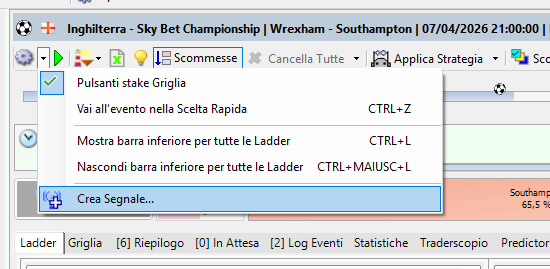
In the Market window, click the "Create Signal..." option on the options menu.
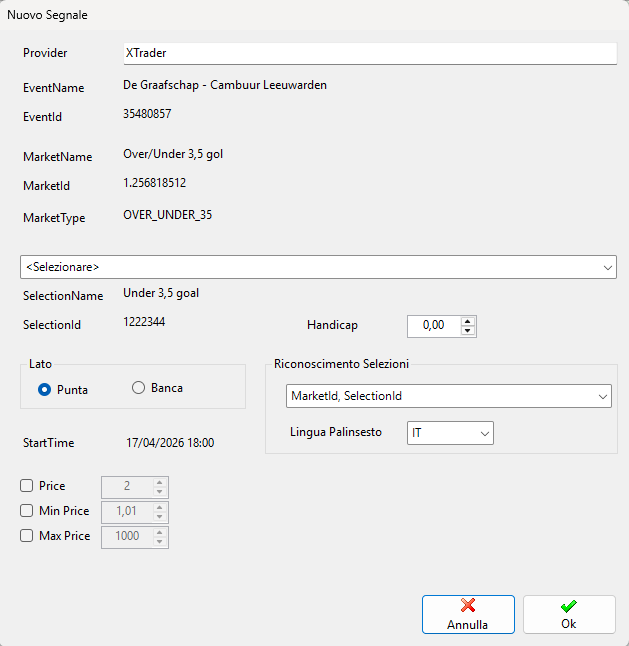
The "New Signal" window opens. Click the selection list to select the signal.
In the Market Monitor window, select the market for which you want to create a signal, right-click, and select "Create Signal..." from the context menu.
Exporting Signals
You can export the list of signals in the table to a CSV file. Select the Export to File button. All currently listed signals are exported.
Signals in the Market Window
When one or more signals are available for the market, the market window displays an icon in the top right corner indicating their presence. Clicking this icon opens the signals window and highlights the relevant signals.
Signals are also displayed in the trading interfaces (Grid, Ladder, Traderscope) with a P when the bet type they contain is BACK, and B when the type is BANK.
