Home BETTING TOOLKIT USER GUIDE Betting Toolkit Automation Market Strategy Application Window
Market Strategy Application Window
Updated on 2026-09-24The Market Strategy Application Window allows you to select one of the available strategies, apply it to the market, start it, stop it, and view a log of the operations performed by the strategy while it is running. This window is opened from the Market Window and is closed together with it when the Market Window is closed. Since 5 strategy application slots are available and each Application Window is associated with a specific slot, up to 5 Market Strategy Application Windows can potentially be opened for each Market Window.
The Application Window contains the following areas:
- The window title, which displays the market name.
- The button bar, containing the commands used to open, select, start, stop, and disapply a strategy. A button allows you to show or hide the strategy tree so that, if desired, all available space can be dedicated to the log. Rule nodes can be expanded or collapsed, and all rules can also be enabled or disabled with a single click. The current strategy can also be opened in the Strategy Editor.
- The bar containing the slot number associated with the window, the name of the applied strategy, and any selections that need to be specified when running it.
- The strategy tree and, on the right, the details of the nodes selected in the tree.
- The strategy Execution Log.
Running Phase
While the strategy is running, the tree view of the strategy structure displays useful information.
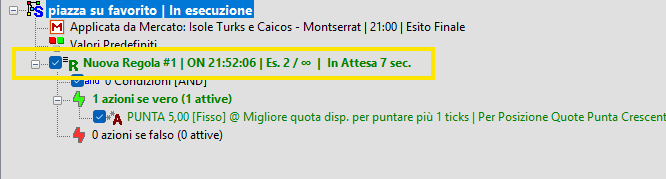
In particular, a rule node shows:
- The rule name.
- The rule status (ON, OFF, DIS, END, SUSP), indicating respectively whether the rule is active, inactive, disabled, has completed its executions or is suspended.
- The time of the last evaluation, expressed as hours/minutes/seconds.
- The current number of executions and the scheduled number of executions.
- Any waiting time between successive executions.
For a condition, its name is displayed together with a summary of the condition evaluation. The entry is shown in GREEN if the condition is met and in RED if it is not.
For an action, the action name is displayed together with whether or not it was executed, the evaluation date and time, and a summary of the action itself.
Since up to 5 strategies can be applied to a single market, an Application Window can potentially be opened for each slot, allowing up to 5 strategies per market to be monitored simultaneously. Monitoring 5 strategies at the same time is obviously not always practical, so the Application Window can be opened as needed when you want to check how a specific strategy is operating.
The window can be opened using the slot buttons in the Market Window. The color of each button provides an indication of the strategy status, as shown in the examples below.
- No strategy applied to the market:

- A strategy is applied to slot 3 but is not currently running:

- A strategy is applied to slot 3 but is not running, while a strategy is applied to slot 4 and is running:

Next to the buttons used to open the Strategy Application Window is an arrow. Clicking it opens a menu where you can select any of the strategies available in the program's strategy archive.
The menu does not include strategies that must be started from a specific selection (see the section on Selection Strategies for details). These strategies must be applied using the Strategy Application Controls available in the trading interfaces.
The bottom status bar of the Market Window displays a summary of the number of strategies currently running and stopped that are applied to that market.
Handling Clicks on the Market Window Apply Strategy Buttons
- Left Mouse Button
As described above, left-clicking a Strategy Application button opens the Strategy Application Window. - Right Mouse Button
Right-clicking the button stops the strategy if it is currently running (equivalent to clicking “Stop” in the Strategy Application Window). If the strategy is applied but not running, it is disapplied (equivalent to clicking “Close Strategy” in the Strategy Application Window).
